From sign-up to your first lap table
Five steps: create your account and team, add a car, upload the file your logger wrote, read the session page, and invite the people you share the car with. Twenty minutes, one logger file.
Last verified against build f98a29e · 2026-09-05
Before you start
- You need
- A browser, an email address, and one file from a supported logger.
- Files
- .vbo (VBOX) · .xrk .xrz (AiM) · .ld (MoTeC, optional .ldx) · .ibt (iRacing)
- Where
- The web app at app.driverpeak.com. The iPhone app shows your laps but does not upload, and teams are created on the web only.
-
1
Create your account and your team
Open Create account, enter a display name, your email address and a password. Every account belongs to a team, so the next page is Create your team: give it a name. The person who creates the team is its admin.
You should see Your empty logbook, headed Welcome to your logbook, with one button: Add your first car →.Note
Sign-in is not remembered between page loads during the beta: reloading the tab signs you out and asks for your password again. Nothing is lost, it is just a sign-in.
-
2
Add a car
Go to Sessions. Above the upload form is the car picker; press + Add car, type a name and press Add. Cars belong to the team, so anyone you invite later sees the same list.
You should see The new car selected in the picker, and the upload form below it. -
3
Upload a session
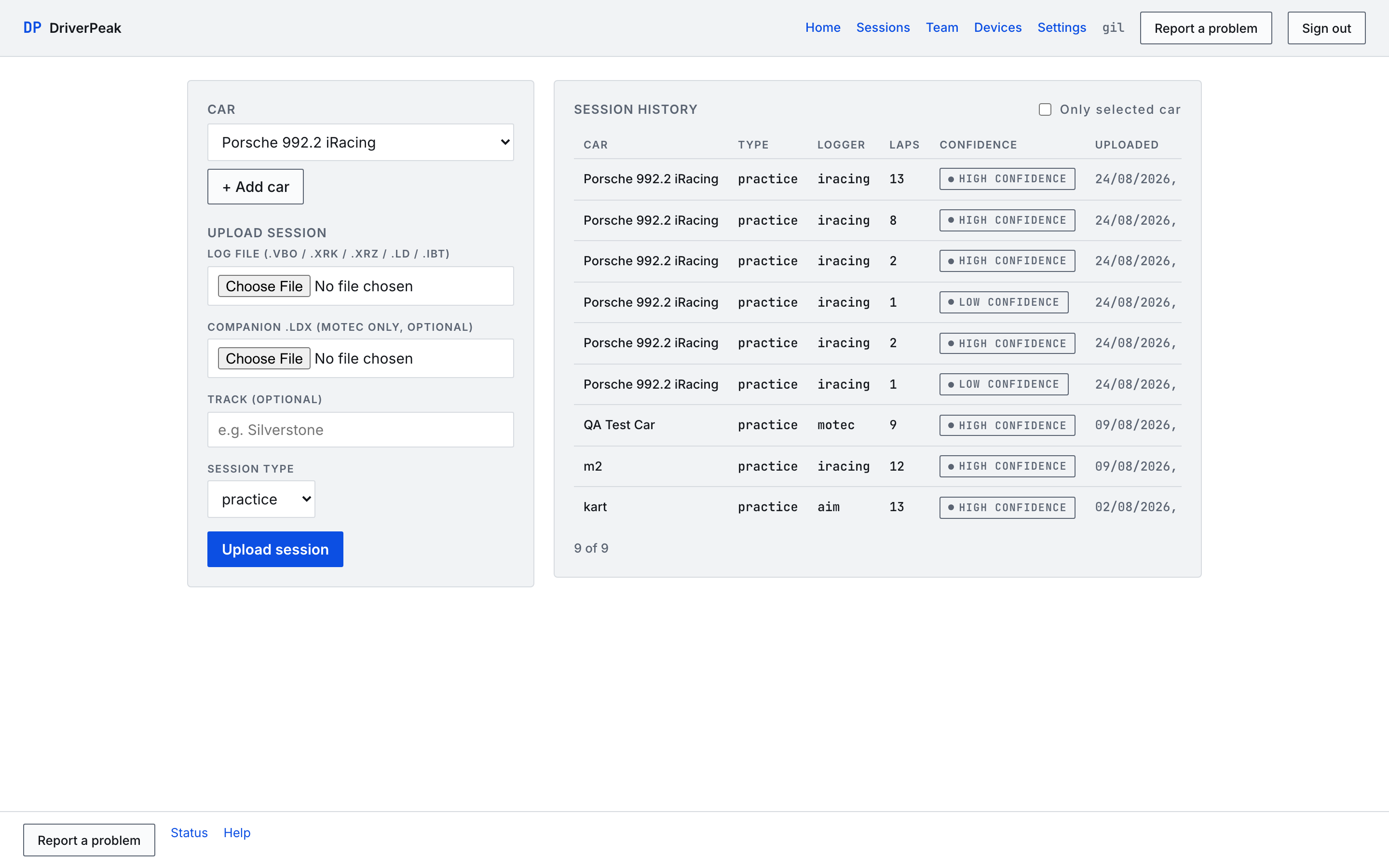
The form has four parts, in this order:
- 1 · Log file
- The file your logger wrote: .vbo, .xrk, .xrz, .ld or .ibt.
- 2 · Companion .ldx
- MoTeC only, optional. Leave it empty for every other logger.
- 3 · Track
- Optional. Start typing and pick a track, or leave it blank.
- 4 · Session type
- Practice, qualifying, race or test.
Then press Upload session.
 1234
1234Sessions page, desktop: car picker and upload form on the left, session history on the right. You should see The session at the top of Session history with its car, type, logger, lap count, confidence and upload time. -
4
Read the session
Open the session from the list. The lap table lists every lap with its time and sector times; the first and last passes are tagged OUT and IN, the best lap is marked, and a lap that was cut short or unusually slow is kept but flagged as uncertain, with the reason next to it. The buttons above the table filter confirmed, uncertain and out/in laps. Beside the table, speed, throttle and brake are drawn against distance for the selected lap; the track map further down follows your cursor.
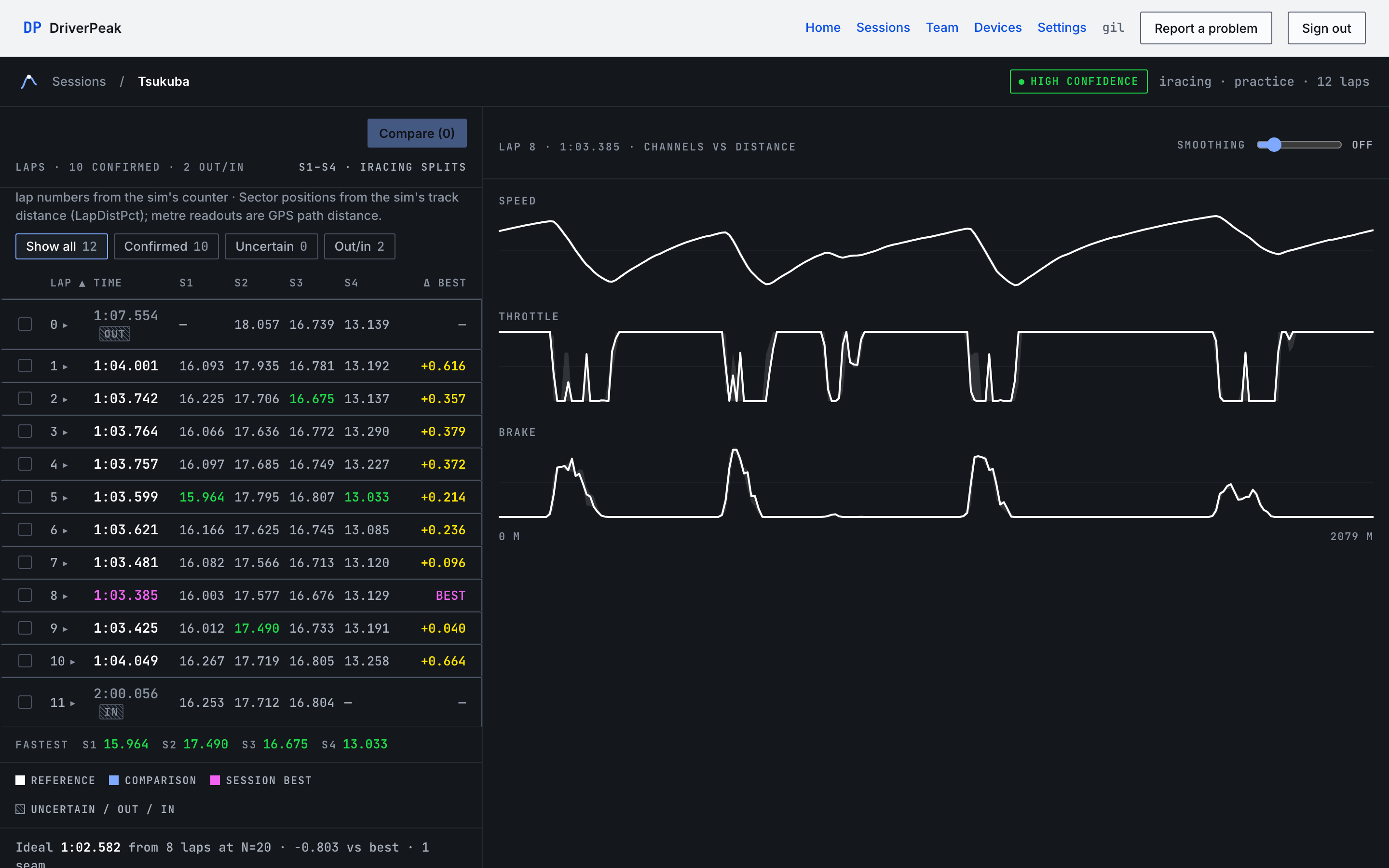
Tsukuba, iRacing. Twelve laps, ten confirmed, best lap 8 at 1:03.385. Honesty note
Laps are detected from the data, not declared by the logger, so each session carries a confidence: High with three or more valid laps whose lengths agree within 10 %, Medium with two or more within 25 %, Low otherwise, and No GPS when the file has no usable position data. iRacing files use the sim's own lap counter. A low confidence means "check the lap table before you trust the sectors", not that the upload failed.
-
5
Invite your team
On the Team page, under Invite someone, choose a role (admin, engineer, coach or driver), optionally enter the person's email address, and press Create invite. Every invite is single-use and expires after 72 hours. With an email address, the invite is sent to it and can only be accepted from that account; without one, you get a link, shown once, that any signed-in person can use once. Staff (engineers, coaches, admins) see every session of the team; drivers see their own.
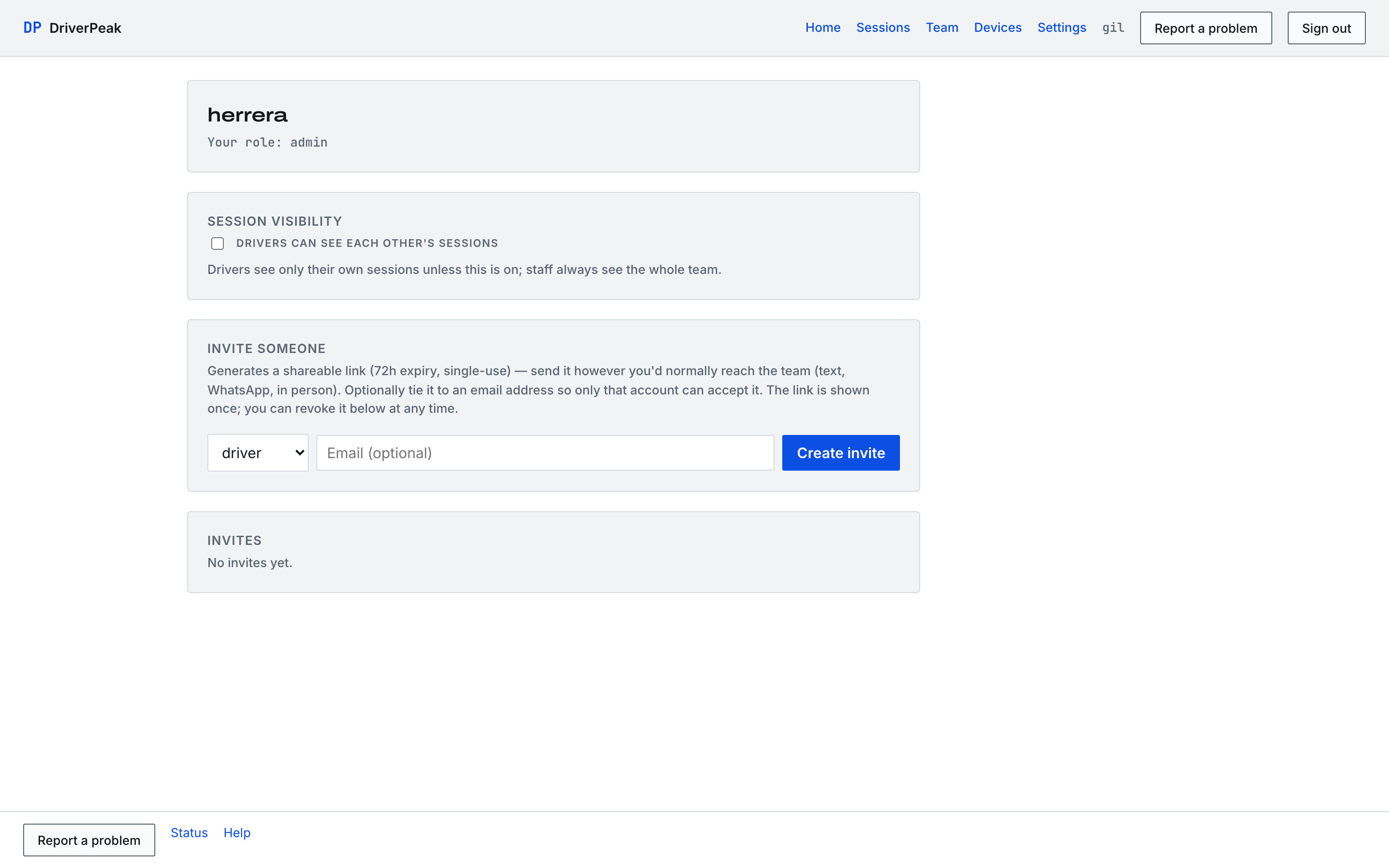
Team page, desktop. One member, no invites yet. You should see The invite listed under Invites with its status, role, whether it is bound to an email, and when it expires.
What next
Tip
Select two laps in the lap table and open Compare to see where one lap gains on the other, metre by metre.
Honesty note
The desktop sync agent, which watches a folder or SD card and uploads new logger files by itself, is available on request during the beta; a downloadable installer is coming. Windows is not published yet: a test build is being tried in September, and whether it ships for the beta is decided at the end of that month.