Uploading a session
One file in, one session out. The upload form is on the Sessions page of the web app; the desktop agent uses the same upload. This page explains the form, the parsing step, and the confidence level every session carries.
Last verified against build f98a29e · 2026-09-06
The form
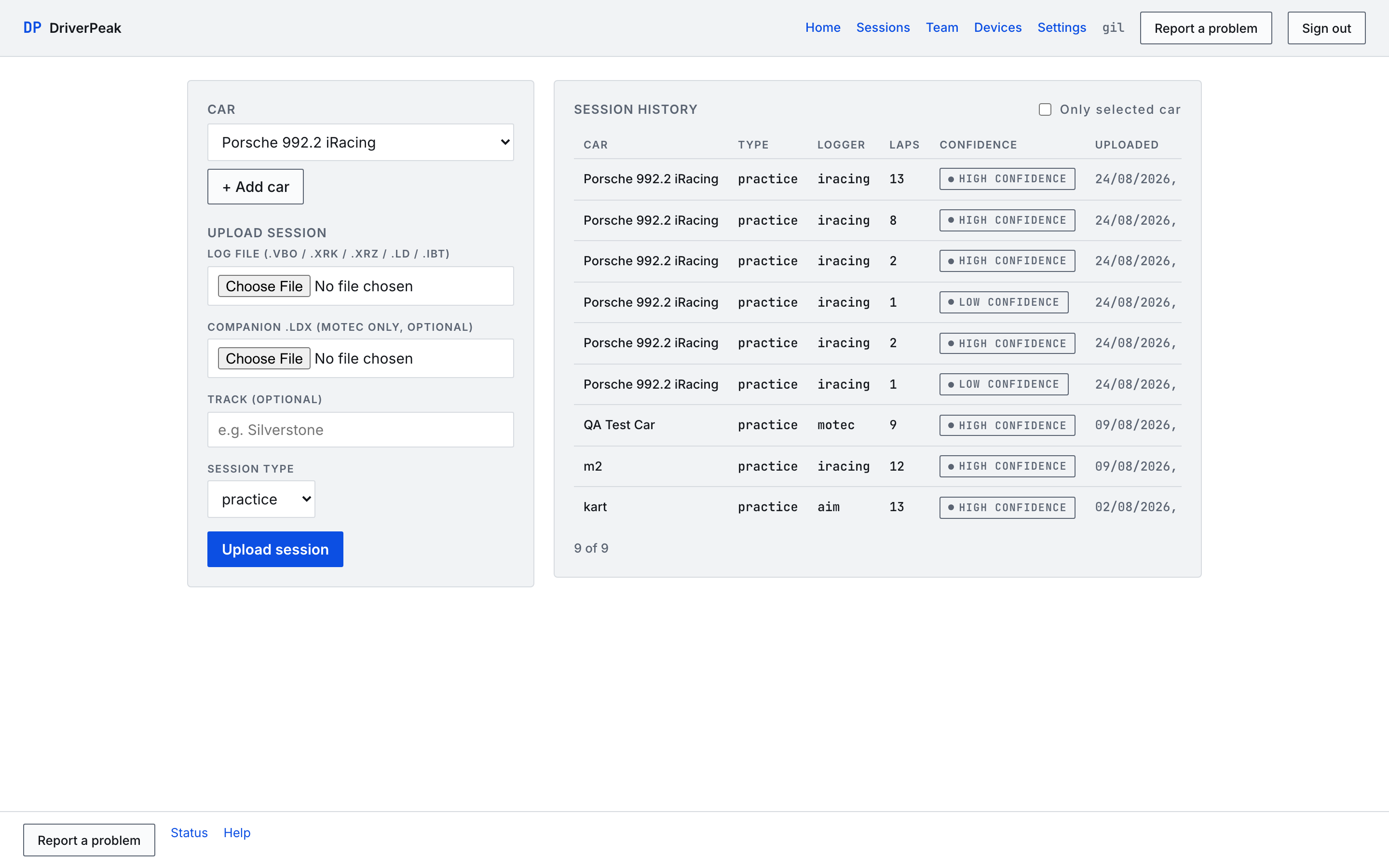
Open Sessions. The car picker sits above the form: the session is filed under the car selected there, and cars belong to the team (admins and engineers can add one with + Add car). Below it, four fields:
- Log file
- The logger's own file: .vbo, .xrk, .xrz, .ld or .ibt. See Exporting from your logger for where each one lives.
- Companion .ldx
- MoTeC only, optional. It must carry the same name as the .ld. Leave it empty for every other logger.
- Track
- Optional. Start typing to pick a track the team already has, or type a new name; a track is created when it does not exist yet. Leave it blank and DriverPeak looks for a track name inside the file: iRacing files carry the sim's track name and AiM files the logger's Venue field, and such a session is filed under that track, created if it is new. VBOX files carry no track name and MoTeC's is not read yet, so those sessions stay without a track unless you type one.
- Session type
- practice, qualifying, race or test.
What happens on Upload
Press Upload session. The file is stored, parsed and lap-detected before the response comes back, so the button reads Uploading & parsing… until the session exists. A small VBOX or AiM file takes seconds; a long iRacing file can take longer than a minute. Leave the page open and do not submit the same file twice: the web app has no duplicate check and a session cannot be deleted from the app yet.
Confidence
Laps are detected from the data, not declared by the logger, so every session says how sure the detection is. For GPS loggers, the point the car passes most often becomes the start/finish reference, every pass starts a new lap, and the lap lengths are then compared with each other:
| Chip | Means |
|---|---|
| High confidence | Three or more valid laps whose lengths agree within 10 %. |
| Medium confidence | Two or more valid laps whose lengths agree within 25 %. |
| Low confidence | Anything else. The session also carries the note treat these lap times as approximate, not authoritative. |
| Single lap · unconfirmed | The file never passes the same point twice: a single-lap recording, or a loop the detection could not close. The whole recording is kept as one unconfirmed segment. |
| No GPS | Too few samples carry a position, so laps cannot be detected at all. |
iRacing files skip the GPS heuristic: lap boundaries and numbers come from the sim's own lap counter, and the session is high confidence as soon as it holds one complete lap.
Tip
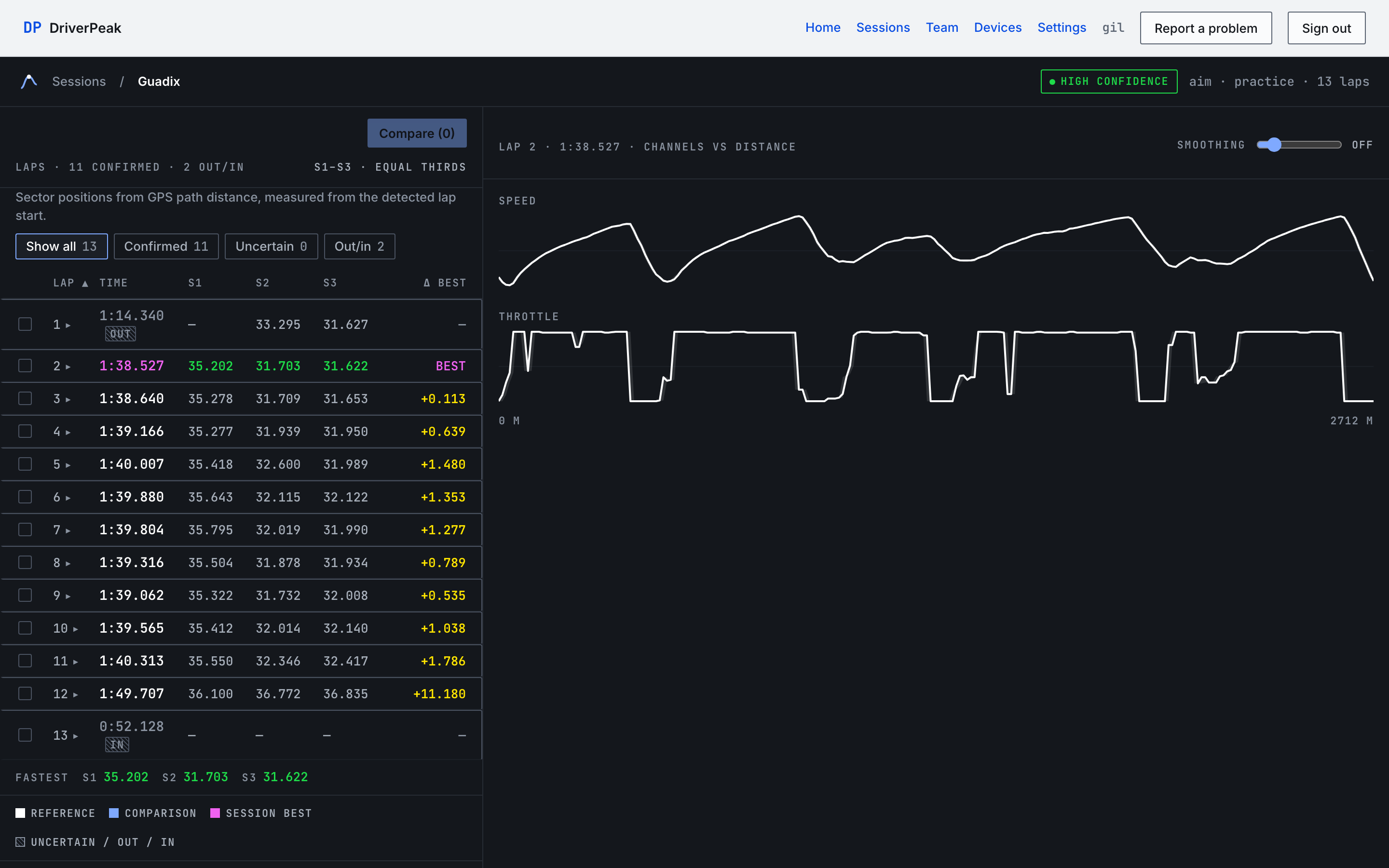
Hover the confidence chip on the session page to read the detection notes: how many times the reference point was revisited, the estimated lap length, how many crossings were accepted. On the iPhone, long-press the chip.
Laps that are kept but flagged
Nothing is thrown away. A lap the detection does not trust stays in the table with a tag and a reason:
- OUT IN
- The partial pass before the first confirmed crossing and the one after the last. They are timed but never counted as laps.
- UNCONF
- An unconfirmed single segment: the file holds no repeated crossing.
- LOW
- A lap marked invalid. Three reasons exist: its length deviates more than 25 % from the session's median lap, which usually means a missed or spurious crossing; its path length is under half the reference lap, below the completeness floor, a fragment between two crossings; or its time is over one and a half times the reference lap time, above the lap-time ceiling, a full-distance lap with a stop or a long off in it. Every lap in a low-confidence session is also shown with this tag.
The best lap, the fastest sector times and the ideal lap are computed from confirmed laps only. The filters above the lap table, Confirmed, Uncertain and Out/in, show each group with its count.
When confidence is low
- 1
Read the notes
Hover the chip. The notes name the cause: too few GPS samples, no repeated crossing, or laps whose lengths disagree.
- 2
Check the lap table
Filter Uncertain. A single odd lap in an otherwise clean session is usually a pit stop or an off, and the rest of the session is fine to use.
- 3
Check the logger
No GPS or a very low sample count means the logger did not have a satellite fix, or, for AiM, the GPS channels were renamed. Fix that at the source and upload the next session; this one does not improve by re-uploading it.
- 4
MoTeC: add the .ldx
If the marker file exists, uploading it alongside the .ld gives the detection a second opinion; a disagreement is reported as a note rather than hidden.
Honesty note
Low confidence means "check the lap table before you trust the sectors", not that the upload failed. Sector times, the delta on the compare page and the ideal lap are all marked approximate for such a session: the ideal lap is still computed, and its line ends with approximate (low confidence). Only No GPS and Single lap · unconfirmed sessions get no ideal lap at all, because there are no lap boundaries to divide: No ideal lap: lap-detection confidence is ‹conf› — there are no trustworthy sector boundaries to compose from. Separately from confidence, an ideal lap also needs at least one complete, valid lap with sectors, and every micro-sector must exist on some eligible lap; see the ideal lap.
The email
After each upload you receive Your session is ready: <track>, <n> laps at your account address, with the track, car and date, the lap count, the best lap, the confidence, the laps that were not counted and why, and a link to the session. Turn it off under Settings → Email me when a session is ready. Team invites and account emails are always sent.
Messages you may see
- ldx_file … doesn't match file …
- The .ldx has a different name from the .ld. Rename it to match, or upload the .ld alone.
- Uploads are paused for maintenance; try again shortly
- Uploads are switched off for a short maintenance window. Nothing was lost; upload again in a few minutes. status.driverpeak.com shows the current state.
- Rate limiter unavailable; try again shortly
- A service the API depends on was briefly unreachable. Wait a few seconds and try again.
- Your session ended — sign in again.
- Your sign-in expired while the page was open. Sign in and upload again.