iPhone app
The phone app is for reading your laps at the circuit: the logbook, the session list, the session page, the lap comparison and the team, with today's sessions kept on the phone so they open without signal while the app is signed in. Uploads and team creation stay on the web.
Last verified against build f98a29e · 2026-09-07
Installing
During the beta the app is distributed through Apple's TestFlight: you receive an invitation by email, install TestFlight from the App Store, and the DriverPeak build appears in it. Sign in with the same email address and password as on the web. Unlike the web app, the phone stays signed in: the sign-in is kept in the iPhone's keychain, so there is no password to type at the circuit. Each time the app starts from closed it checks that stored sign-in with the server, so a start with no signal lands on the sign-in screen rather than in the app. If the app ever signs you out, it says Signed out — sign in again to continue.
Honesty note
iPhone only. There is no iPad layout and no Android app. An account that is not on a team yet sees You're not on a team yet with a field to paste an invite link; creating a team is done on the web.
The screens
- Home
- The logbook: hours behind the wheel, laps, cars and tracks, hours by car, hours and laps by track, the most recent session. The same numbers as the web logbook.
- Sessions
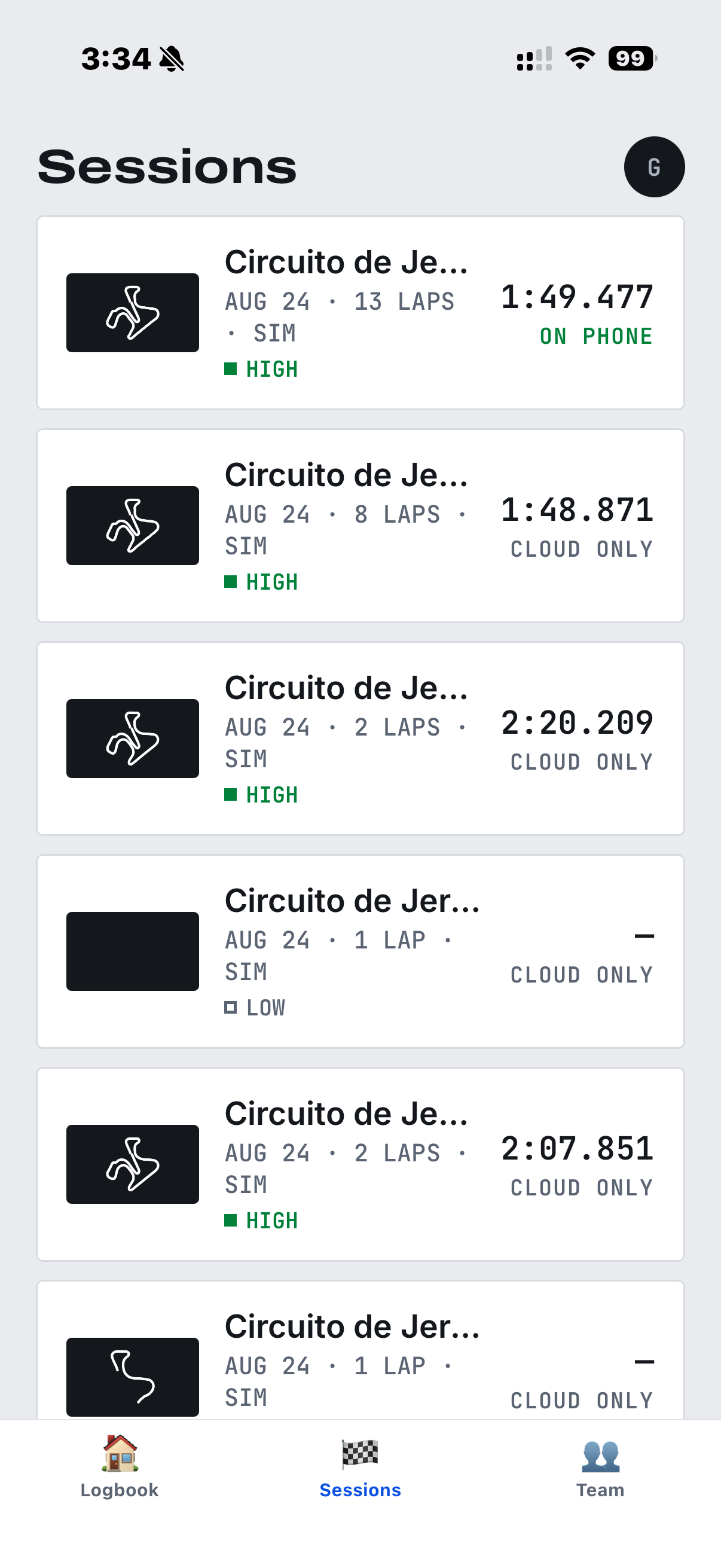
- The team's sessions you may see, one card each: the track outline drawn from the session's GPS, the track name, the date, the lap count and whether it is a sim session, the confidence chip, the best lap time (a dash when the session has no complete lap), and a badge: ON PHONE when the session's laps are stored on the phone, CLOUD ONLY when they are not.
- Session
- The dark session page: the session best against your personal best at this track, the map, the lap table with the same sector caption and tags as the web, and the ideal-lap line. Long-press the confidence chip for the detection notes. Check two laps and press Compare L8 vs L10.
- Compare
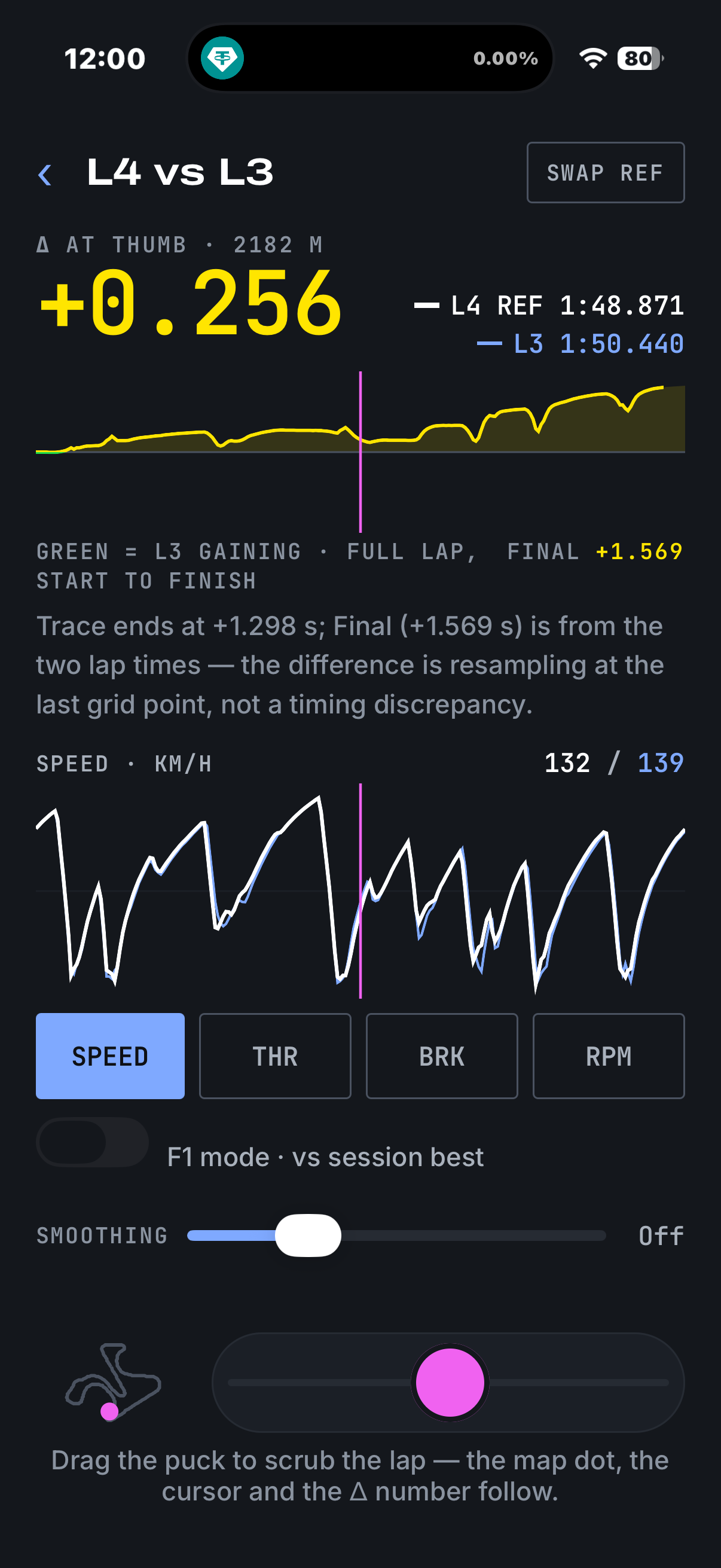
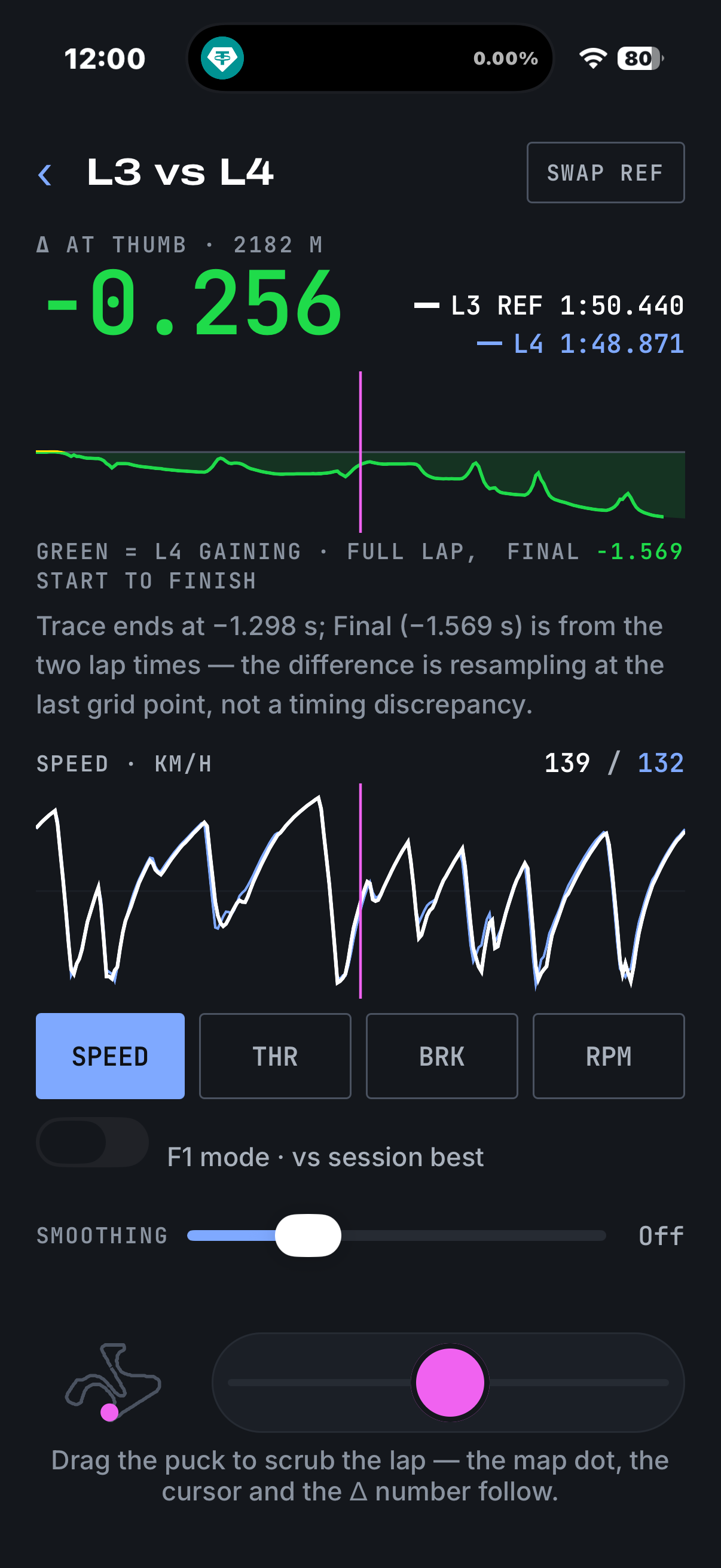
- The delta strip is the screen. The title names the pair, Swap ref flips it, and the big number is the delta at the thumb with its distance. Scrub with the puck at the bottom, not by dragging the chart: the readout, the channel chart and the dot on the track thumbnail follow. One channel shows at a time (Speed, THR, BRK, RPM), the notes under the strip are the web's, and F1 mode · vs session best and smoothing work as on the web.
- Team
- Your team and role, the two switches (Drivers can see each other's sessions for admins, Email me when a session is ready for everyone), the invite form and list for admins, a short explanation of the desktop sync agent, and Report a problem.
Without signal
No signal is a state, not an error. Today's sessions download themselves over any signal and stay usable with none, as long as the app is already open and signed in when the signal goes; an app started from closed without signal cannot check its sign-in and shows the sign-in screen instead. Older sessions open once they have been opened with signal. With no connection the session list shows what is already on the phone under the banner No connection — showing what's already on the phone. New sessions appear when signal does. A session that was still cloud-only says No connection — and this session isn't on the phone, and downloads itself when signal returns. The logbook totals and the Team screen need a connection and say so.
Reporting a problem
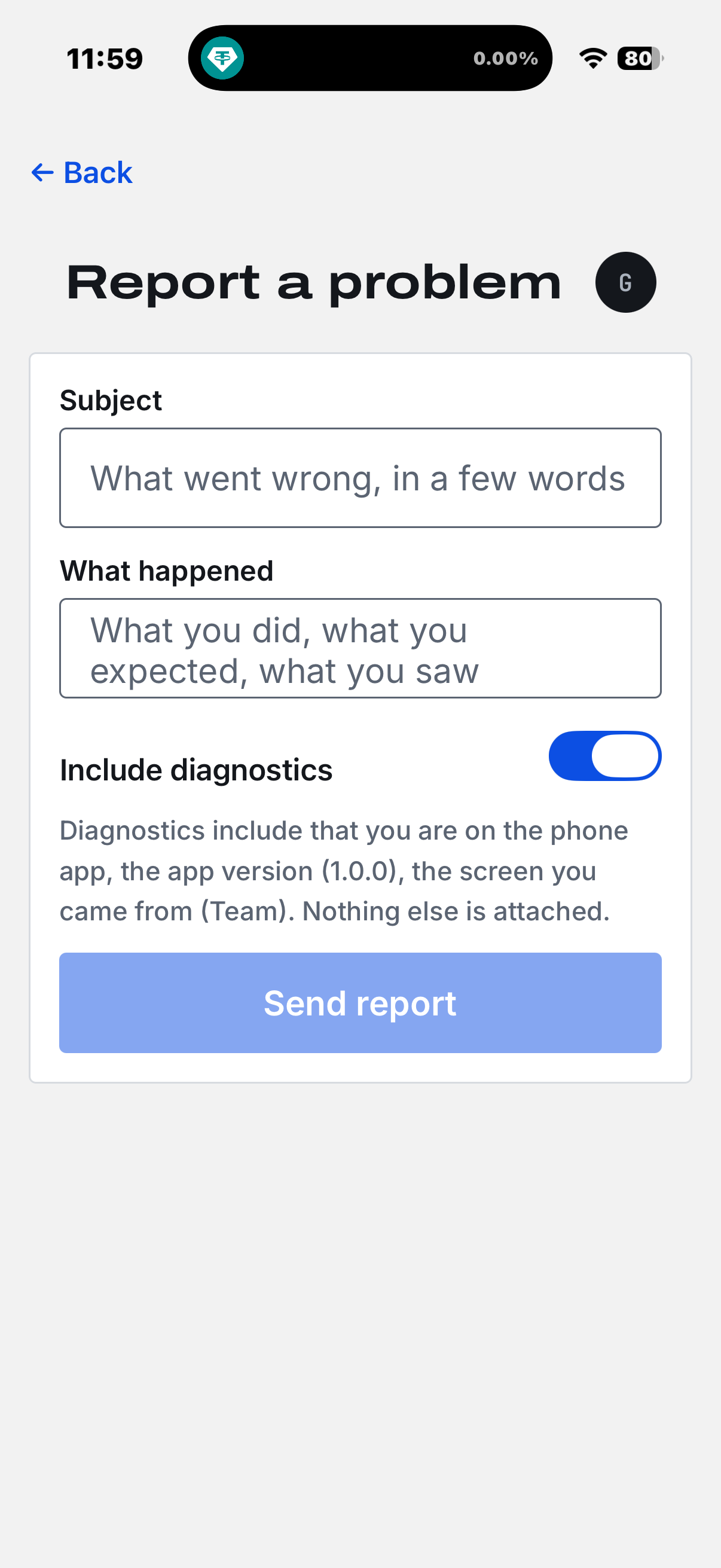
Report a problem is on the Team screen. Subject, what happened, and a diagnostics switch, on by default, whose sentence says exactly what is attached: that you are on the phone app, the app version and the screen you came from, plus the session if you came from one. Nothing else. A person replies by email, usually within two business days during the beta.
Written without signal, the button reads Save and send when online; the report is kept on the phone, where it survives closing the app, the screen shows Saved — sends when signal returns, and the banner counts what is waiting. The send happens when signal returns while the Report a problem screen is open: each waiting report is sent once. If that attempt fails for lack of signal, the report stays on the phone for the next reconnect. If the server answers, whether it accepts or rejects the report, the report leaves the queue either way; a rejected report is not saved again. A report sent with signal is never retried: a network failure queues it, any other error is shown on the screen.
What the phone does not do
- Upload
- Uploads happen on the web or through the desktop agent. The empty Sessions screen says so: DriverPeak reads the file your logger already wrote. Upload it on the web app — or let the desktop sync agent watch a folder — and the session lands here on its own.
- Create a team
- Web only. The phone can accept an invite.
- Pair a desktop agent
- Pairing starts from the agent and is approved in a browser on that computer; the phone's Team screen explains this and points at the web app.
- Delete
- Nothing can be deleted from the phone, as nothing can be deleted from the web yet.