Teams and roles
Every session belongs to a car, every car belongs to a team, and the team's roles decide who can open what. This page states the rules exactly as the app applies them, including the ones that are still missing.
Last verified against build f98a29e · 2026-09-06
One team per account
An account joins a team either by creating one, the Create your team page right after sign-up on the web, or by accepting an invite. The person who creates a team is its admin. Creating a team is web-only; the iPhone app can accept an invite but not create a team. An account belongs to one team at a time in the app: the navigation, the logbook and the session list are that team's.
Roles and who sees what
| Role | Sessions | Can also |
|---|---|---|
| driver | Their own sessions. Other drivers' sessions only when the team setting below is on. | Upload sessions, pair a desktop agent, invite nobody. |
| engineer | Every session of the team. | Add cars. |
| coach | Every session of the team. | — |
| admin | Every session of the team. | Add cars, create and revoke invites, change the team's visibility setting. |
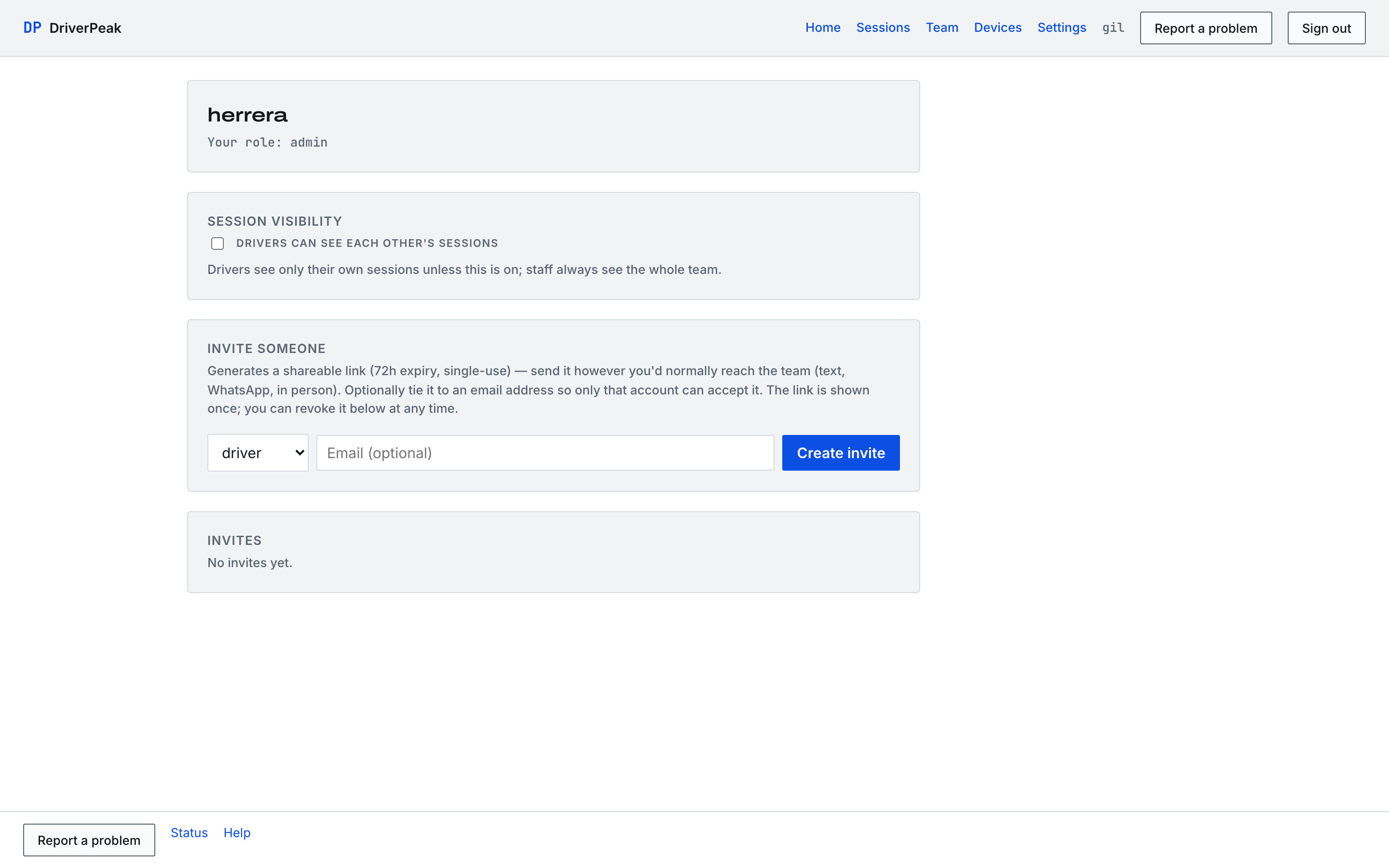
Staff, which means engineers, coaches and admins, see every session of the team; a driver sees their own. The one team-level setting is on the Team page, for admins: Drivers can see each other's sessions. It is off by default. The same rule decides what appears in the session list, the logbook and the track trend, so a session a driver cannot open never shows up in a list either.
Invites
Admins invite from the Team page. Choose the role the person will have, optionally enter their email address, and press Create invite. Every invite is single-use and expires after 72 hours.
- With an email address
- The invite is emailed to that address, and only an account with that address can accept it. The form shows Emailed, or Not emailed with the reason if the email could not be sent; the link still works.
- Without one
- You get a link, shown once. Send it however you reach the team; any signed-in person can use it once, and joins with the role you chose.
- Accepting
- Opening the link shows who invited you and to which team, then Accept and join. Without an account, the link survives the sign-up detour. On the iPhone, paste the link or code under Look up invite.
- The list
- Under Invites: status (pending, used, expired or revoked), role, whether it is bound to an email, who created it and when, and when it expires. Revoke kills a pending link. The list never shows the link itself.
Note
A used, revoked or expired link says so when opened, and names the person to ask for a new one. Invite links are rate-limited: many attempts from one place in a minute are refused for a short while.
Cars
Cars are the team's, not the driver's: the car picker on the Sessions page lists every car of the team, and a session is filed under the car selected when it is uploaded. Admins and engineers add cars with + Add car; the desktop agent offers the same list when a folder is added. The logbook totals hours by car.
Devices
Devices lists the computers paired with the desktop sync agent under your account: name, when it was paired, when it last uploaded, and whether it is active. A paired device holds a device token with a small, fixed reach: it can upload sessions, list the cars it may upload against, and send a problem report with the agent's own diagnostics. It cannot read sessions, laps or telemetry, change the team, or do anything else in the account. Revoke takes effect on that device's very next upload attempt. Pairing itself starts from the agent and is approved in the browser, signed in as you.
Settings
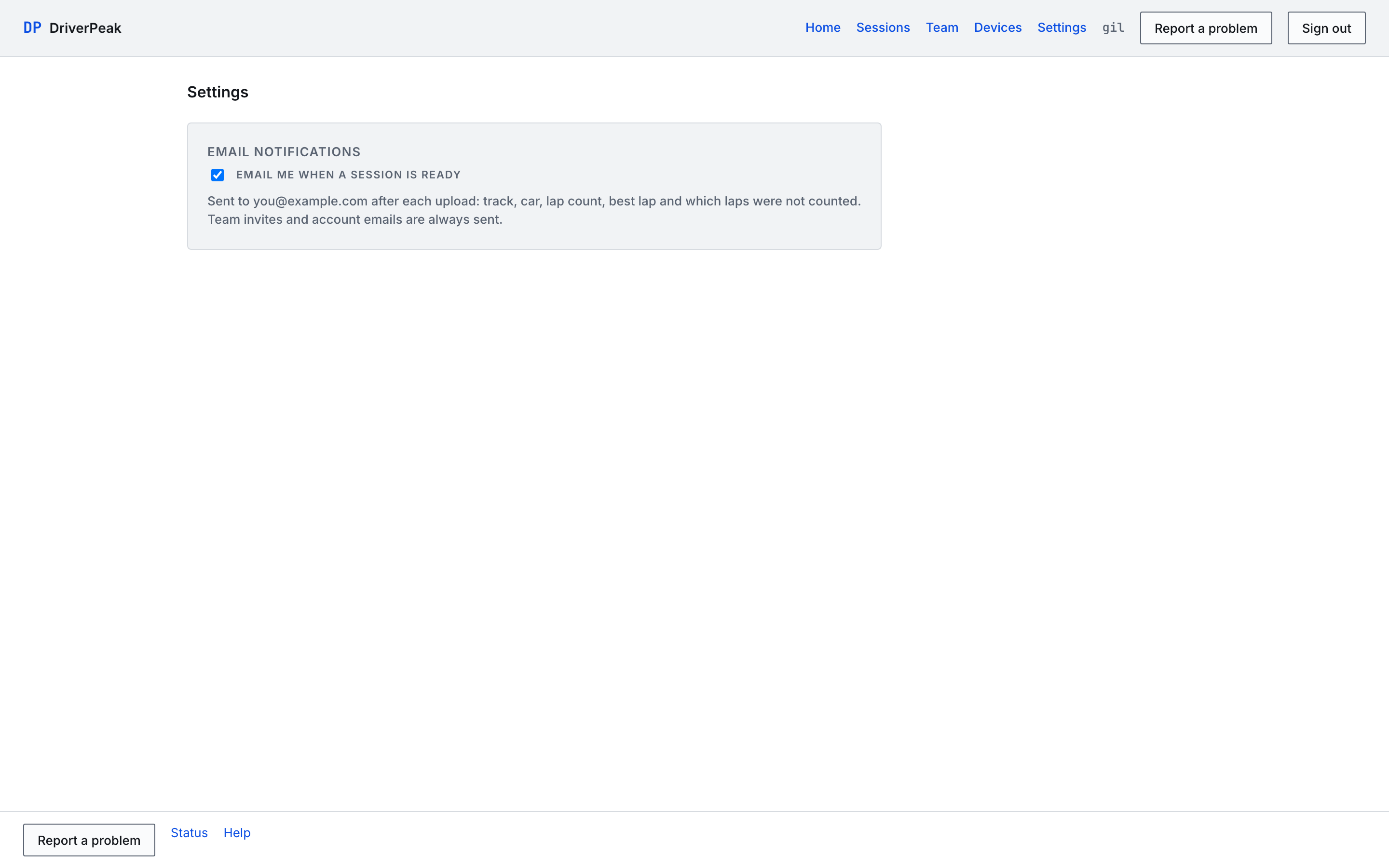
Settings holds one switch: Email me when a session is ready, the email sent to your address after each upload with the track, car, lap count, best lap and the laps that were not counted. Team invites and account emails are always sent. The same switch is on the iPhone's Team screen.
What you cannot do yet
Honesty note
There is no way in the app to remove a member, change a member's role, rename or delete a car, delete a session or delete a team. Membership is by invitation only, and an invite's role is fixed when it is created. If you need one of these, write to support@driverpeak.com and it is done by hand. Self-service export and account deletion are the next things being built.